
How to Change Your SASSA Banking Details for SRD Grant in 2026
If your SRD R350 payment stopped landing, or you switched banks and need to update your account on file, you need to change your SASSA banking details correctly the first time. Get a digit wrong or skip the OTP step and you risk a delayed payment cycle. This guide covers every way to change banking details for SASSA Appeal online, by phone, in person, or by paper form plus what to do when the update doesn’t go through.
Quick Answer
To change your SASSA banking details, go to srd.sassa.gov.za, enter your ID number, verify with an OTP sent to your registered cellphone, complete face-scan identity verification, and submit your new bank account details. Processing usually takes a few working days.
Why Do SASSA Banking Details Need Updating?
Beneficiaries need to change SASSA banking details for several common reasons:
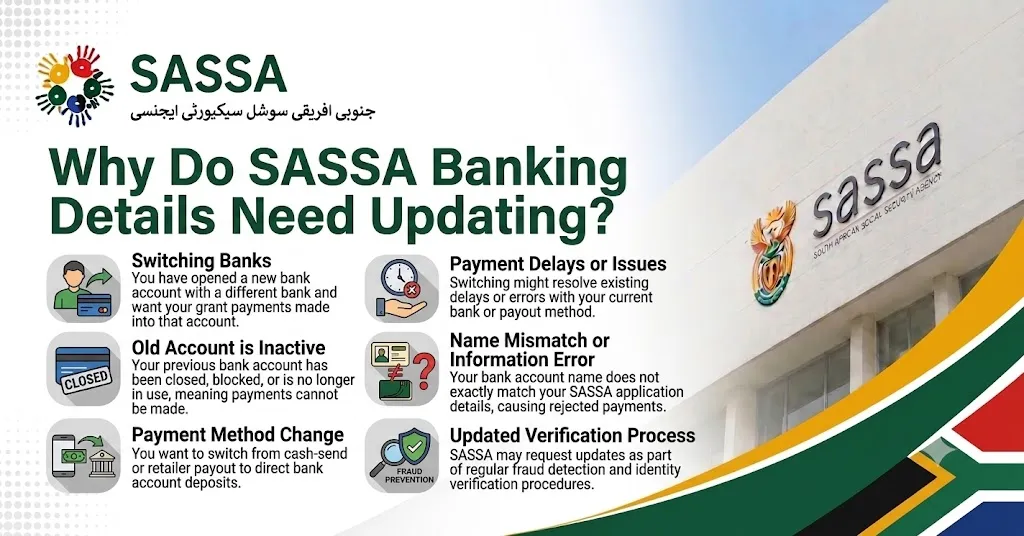
Whatever the reason, the process for SRD SASSA change banking details is the same regardless of whether you’re updating R350 SRD, or the newer R370 grant amount both run through the same srd.sassa.gov.za system.
What You Need Before You Start?
Before you attempt to change your banking details on SASSA, have these ready:
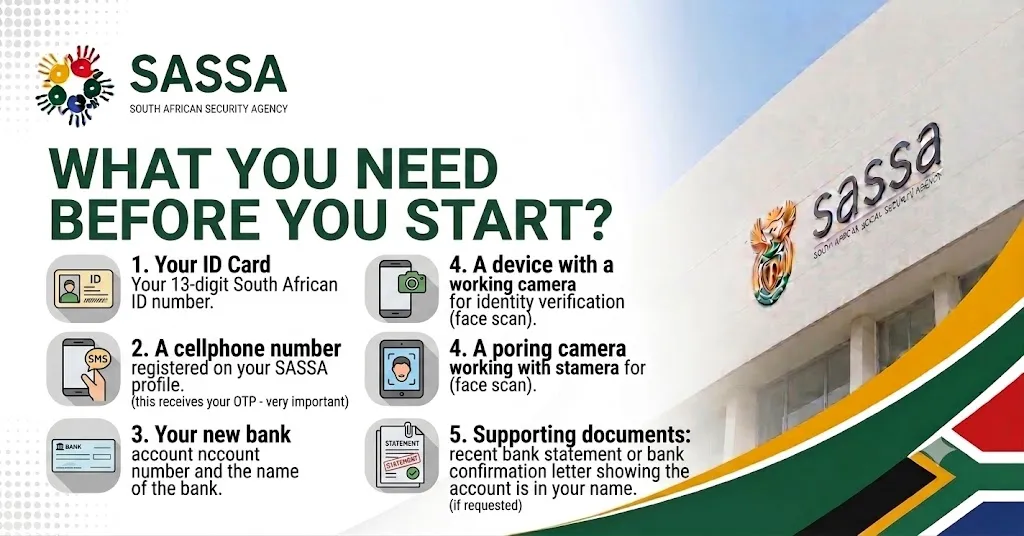
| Requirement | Why It’s Needed |
| ID Number | Confirms your identity against your SASSA record |
| Registered Cellphone | Receives the OTP/secure SMS link — mismatches are the top cause of failed updates |
| New Bank Details | Account number, bank name, and confirmation the account is in your name |
| Camera-enabled Device | Required for face-scan identity verification |
| Proof of Banking | Some cases require a bank-issued document as acceptable proof |
How to Change SASSA SRD Banking Details Online (Step-by-Step)
This is the fastest and most common way beneficiaries change banking details sassa srd without visiting an office.
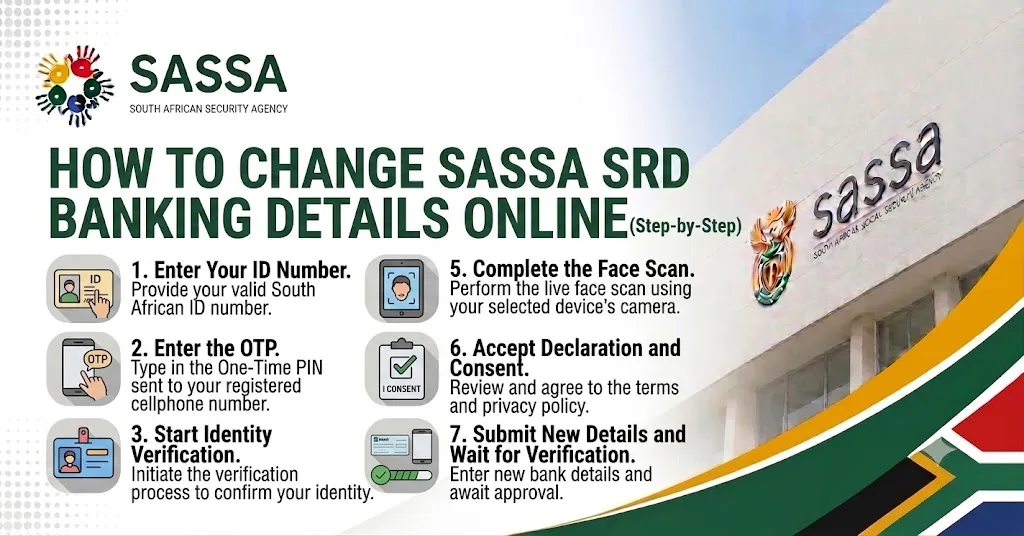
Step 1: Enter Your ID Number
Go to the official SRD website and select the banking details update option. Type in your 13-digit ID number exactly as it appears on your identity document.
Step 2: Enter the OTP
SASSA sends a one-time PIN (or a secure SMS link, depending on the current system version) to your registered cellphone number. Enter it promptly OTPs typically expire within a few minutes.
Why this matters: if the number on file is outdated, you won’t receive the OTP at all see the section below on what to do if it never arrives.
Step 3: Start Identity Verification
You’ll be prompted to begin a face-verification process. This confirms that the person submitting the update matches the ID number provided, a key anti-fraud measure introduced for sassa r350 change banking details online login sessions.
Step 4: Choose Your Device
Select whether you’re completing verification on a phone, tablet, or computer with a webcam. Allow camera access when prompted.
Step 5: Complete the Face Scan
Follow the on-screen prompts (blink, turn your head, etc.) to complete the liveness check. Don’t rush this step poor lighting is a common reason scans fail and need to be redone.
Step 6: Accept the Declaration and Consent
Confirm that the new account belongs to you and that the details you’re submitting are accurate.
Step 7: Submit Your New Banking Details and Wait for Verification
Enter your new account number and bank name, then submit. SASSA cross-checks the account with the bank before approving the change this is why it isn’t instant.
Don’t submit the SASSA Appeal Form form multiple times if it seems slow duplicate submissions can actually delay verification further.
Alternative Methods to Change SASSA Banking Details
Not everyone can complete the online process here’s how to change banking details sassa through other channels.
| Method | Best For | Processing Time | Notes |
| Online (srd.sassa.gov.za) | Most beneficiaries with a smartphone | 2–5 working days | Requires OTP + face scan |
| Call Centre | Those without smartphone access | 3–7 working days | Have your ID and new bank details ready |
| SASSA Local Office | Those needing in-person assistance or documents rejected online | 5–10 working days | Bring ID and proof of banking |
| Moya App | Data-free access for SRD applicants | 2–5 working days | Popular where mobile data is limited |
| Paper Form | Rural areas or no digital access | 7–14 working days | Requires supporting documents submitted physically |
So, the online method is the best option for most people, because it’s the fastest and doesn’t require travel — but the Moya App is a strong alternative if you’re managing data costs, since it doesn’t use mobile data to access SASSA services.
Paper Form Process (Offline Alternative)
If you genuinely can’t access the online system:
Changing Banking Details to a Specific Bank
Many beneficiaries specifically want to know how to change banking details sassa to capitec r350, or switch to TymeBank, FNB, or Absa. The process is identical regardless of destination bank SASSA doesn’t have separate workflows per bank. You simply enter the new account number and select the matching bank name during Step 7 above.
I really suggest confirming your new account is fully active (not just opened) before submitting the change, since SASSA’s bank-side verification can reject a brand-new, unverified account.
If You Do Not Have a Bank Account
If you’re changing your SASSA payment method from Post Office to bank account for the first time and don’t currently have one:
Common Problems After a Banking Details Update
Approved But No Payment Received
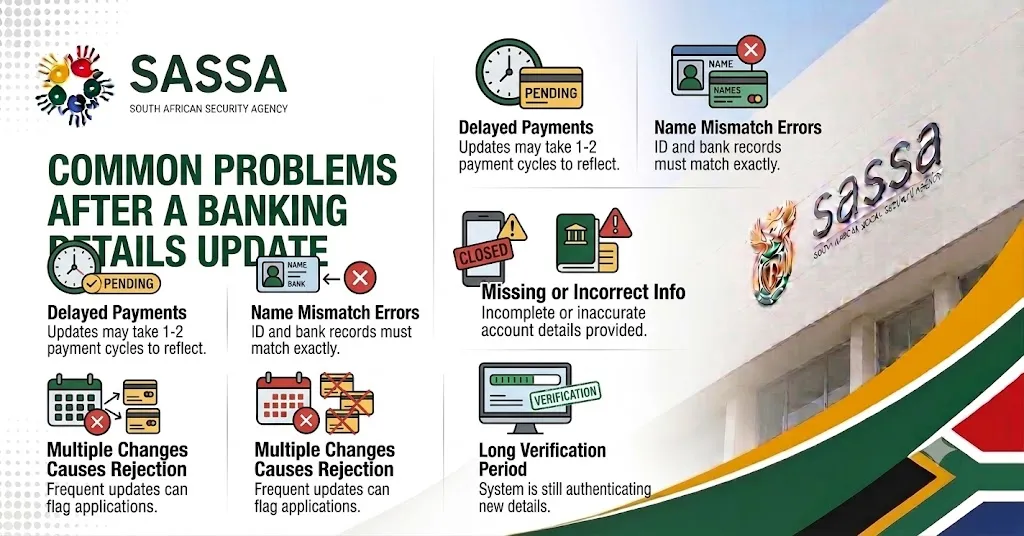
If your update shows “approved” but no money has landed, common causes include:
What If You Entered the Wrong Banking Details?
What to Do If the OTP or SMS Link Never Arrives
Protecting Your Banking Details From Scams
Contacting SASSA for Banking Issues
If an update fails repeatedly or your payment doesn’t reflect after a confirmed change, contact SASSA directly through the toll-free call centre or visit your nearest regional office with your ID and reference number. Don’t rely on third-party “helper” sites claiming to speed up processing only the official channels can actually action a change.
FAQs
Final Thoughts
Changing your SASSA banking details comes down to one core process ID verification, OTP confirmation, and a face scan whether you’re doing it for R350, R370, or a permanent grant.
The online route at srd.sassa.gov.za is the fastest for most people, but the Moya App, call centre, and paper form all exist for exactly the situations where the digital route isn’t practical. The one habit that prevents almost every delay.
make sure your registered cellphone number is current before you start, since that’s where nearly every failed update traces back to.